Break It Any Way · Disintegration
Blender disintegration add-on: every setting, and what it does
38 clips, each one the same shot with a single setting changed. Rendered from the add-on itself, on Blender 4.5.
Get Break It Any Way
What it is
The whole effect runs on your frame range. Set Frame Start and Frame End and everything follows from them — so you can scrub anywhere in the timeline, and put Frame End below Frame Start to build the object out of its own debris instead. Nothing is baked, nothing is keyframed, and there is no simulation to wait for.
The one exception is Collision. Turn it on and the debris really hits your collider, which means it has to be played from the start like any simulation. That trade is yours to make, and it is off by default.
Three steps
- Select your mesh and press Add to Selected
The FX tab in the 3D viewport sidebar. A character in five parts can be done in one click from its collection instead, and every part shares one controller and one scale. - Play the timeline
The effect runs over your scene's frame range straight away — no keyframes needed. Put Frame End below Frame Start and the object assembles out of its own debris instead. - Move the empty to aim it
The dissolve starts wherever the controller empty is and spreads from there. Parent it to a hand, a bone or a moving object and the front follows.
The main controls
What the effect breaks into, and what it reads as the body. These sit above the panels because every effect needs them.
Fragment Mode
Three ways to break the same mesh. Points scatters a shape you choose, Chunks flies pre-fractured solids, Shatter cuts the surface into shards along its own edges.
Vanish and Appear
Frame Start below Frame End and the object comes apart; the other way round and it builds itself out of its own debris. Nothing is baked, so you can scrub anywhere.
| Setting | Default | What it does |
|---|---|---|
| Geometry | — | The mesh the effect runs on. Wired for you. |
| Fragment Mode | 0 | Three ways to break the same mesh. Points scatters a shape you choose, Chunks flies pre-fractured solids, Shatter cuts the surface into shards along its own edges. |
| Source Collection | — | Treat a collection of meshes as one body, so a character in five parts dissolves as a character. |
Timing
When the effect starts, how long it takes, and how long each piece lives once it is let go.
Lifetime
How long one piece lives after it is let go. Short pieces wink out close to the body; long ones travel.
Release Time
How long the effect spends letting go of the whole body. Short means it all bursts at once; long means a slow front crossing the mesh.
| Setting | Default | What it does |
|---|---|---|
| Frame Start | 1 | The frame the dissolve begins on. Put it AFTER Frame End and the object assembles instead. |
| Frame End | 100 | The frame it finishes on. |
| Lifetime | 25 | How long one piece lasts once it is released, in frames. It no longer has any say in how fast the effect plays out -- that is Release Time. Set it longer than the frame range and pieces simply outlive the shot. |
| Release Time | 75 | How long the effect takes to let go of every piece, in frames -- how fast or slow the explosion plays out. Short and the whole object goes at once; long and the front creeps across it. 0 releases everything on the same frame. This used to be tied to Lifetime, so a long Lifetime made the object burst all at once; it is its own setting now, and Lifetime is only how long a piece lasts. |
Pieces
What the object breaks into, and how many of them there are.
Density
How many fragments Points scatters over the surface.
Seed
Same settings, different break. Change it when you want another take of the same shot.
Shard Density
How finely Shatter cuts the surface. Too coarse and the shards read as blocks -- the panel warns you when it is.
Shard Thickness
Shards are solid, not paper. This is how thick.
Fragment Scale
How big each scattered fragment is.
Scale Min / Max
Spread of sizes across the pieces. Equal values give uniform debris; a wide range mixes dust with rubble.
| Setting | Default | What it does |
|---|---|---|
| Fragment | — | The object each Points fragment is a copy of. |
| Fragment Collection | — | The pieces Chunks flies, usually made by Fracture Into Chunks. |
| Density | 200 | How many fragments Points scatters over the surface. |
| Seed | 0 | Same settings, different break. Change it when you want another take of the same shot. |
| Shard Density | 8 | How finely Shatter cuts the surface. Too coarse and the shards read as blocks -- the panel warns you when it is. |
| Shard Thickness | 0 | Shards are solid, not paper. This is how thick. |
| Fragment Scale | 0.04 | How big each scattered fragment is. |
| Scale Min | 0.6 | The smallest a piece can be, as a share of Fragment Scale. Equal to Scale Max gives uniform debris. |
| Scale Max | 1.4 | The largest. A wide gap between the two mixes dust with rubble. |
Dissolve Front
Where the effect starts on the mesh and how it travels across it.
Spread
How far the dissolve front reaches from the controller.
Softness
How sharp the edge of the front is. Hard gives a clean sweep; soft gives a ragged, eaten-away boundary.
| Setting | Default | What it does |
|---|---|---|
| Controller | — | The empty the dissolve spreads from. Parent it to a bone or a moving object and the front follows. |
| Spread | 1 | How far the dissolve front reaches from the controller. |
| Softness | 0.15 | How sharp the edge of the front is. Hard gives a clean sweep; soft gives a ragged, eaten-away boundary. |
| Mask | An attribute that scales the dissolve field, so a hand or a logo can go first, or be protected. | |
| Field Follows Pose | on | On a rigged mesh, the dissolve front follows the pose rather than staying where the rest position was. |
| Detach From Rig | on | Fades a released piece out of the rig's deformation so it stops being dragged by the animation. |
Motion
What happens to a piece after it is free.
Gravity
Off by default -- the shipped look is a drift, not a fall. Turn it on and the debris obeys it.
Wind
A steady push in one direction, for drifting ash.
Burst
Throws each piece along the surface normal as it is released -- the difference between crumbling and exploding.
Randomness
How much the speed varies from piece to piece, so a burst reads as debris rather than as one expanding shell.
Drag
Air resistance. High drag makes debris hang and settle rather than carry on.
Time Scale
How fast the physics runs against the frame range. Raise it to give falling debris time to land inside your shot.
Spin
How fast a piece tumbles once it is free.
Random Rotation
Turns each piece to face its own way at birth, so a scatter does not read as one shape stamped over and over.
Align to Velocity
Points each piece along the direction it is travelling, for streaks and sparks.
| Setting | Default | What it does |
|---|---|---|
| Gravity | (0, 0, 0) | Off by default -- the shipped look is a drift, not a fall. Turn it on and the debris obeys it. |
| Wind | (0, 0, 0) | A steady push in one direction, for drifting ash. |
| Burst | 1.2 | Throws each piece along the surface normal as it is released -- the difference between crumbling and exploding. |
| Randomness | 0.45 | How much the speed varies from piece to piece, so a burst reads as debris rather than as one expanding shell. |
| Drag | 0.001 | Air resistance. High drag makes debris hang and settle rather than carry on. |
| Time Scale | 2.5 | How fast the physics runs against the frame range. Raise it to give falling debris time to land inside your shot. |
| Spin | 2 | How fast a piece tumbles once it is free. |
| Random Rotation | 0 | Turns each piece to face its own way at birth, so a scatter does not read as one shape stamped over and over. |
| Align to Velocity | 0 | Points each piece along the direction it is travelling, for streaks and sparks. |
Turbulence Field
A turbulence force field, as Blender's own. Strength accelerates a piece; Size is the width of a swirl; Flow 0 freezes the field in space. Place an object to give it a centre and a falloff.
Turbulence
Blender's own turbulence field, as an acceleration that eases to a drift speed rather than building up for ever.
Turbulence Size
The wavelength of the noise. Small size churns each piece separately; large size moves whole clouds together.
Turbulence Flow
How fast the noise field itself moves. Zero is a frozen field the pieces fly through.
Turbulence Noise
Adds an unpredictable jitter on top of the smooth field.
Turbulence Falloff
Point the field at an object and it weakens with distance, exactly as a Blender force field does -- sphere, tube or cone.
| Setting | Default | What it does |
|---|---|---|
| Turbulence | 0.5 | How hard the turbulence field pushes, as Blender's Strength. It is an acceleration, not a speed: a piece eases outward and keeps gaining, rather than setting off at full tilt. Stops the moment a piece hits something. |
| Turbulence Size | 1.5 | How wide one swirl of the field is, in metres -- Blender's Size. Large values move whole neighbourhoods of pieces together; small ones break them up into separate wisps. This is the OPPOSITE of the old Turbulence Scale, which multiplied instead of measuring. |
| Turbulence Flow | 0 | How fast the field itself moves. 0 leaves it frozen in space, so pieces drifting through the same patch are pushed the same way and the motion reads as air rather than as noise. Raise it and the field churns while the pieces fly through it. |
| Turbulence Noise | 0 | Extra jitter on top of the smooth field, per piece. Blender calls it Noise Amount. A little breaks up the uniformity; a lot reads as static. |
| Turbulence Seed | 117 | Change it for a different swirl from the same settings. |
| Turbulence Object | — | Where the field sits. Leave it empty and the field fills the whole scene, which is what this effect did before it had a centre. Set it and Power, Min and Max Distance start to bite. |
| Turbulence Falloff | 0 | The shape the field fades over, from its object. 0 sphere, fading in every direction. 1 tube, fading from the object's Z axis, for a column of moving air. 2 cone, fading from the axis by angle as well, for a blast aimed one way. |
| Turbulence Z Dir | 0 | Which half of the field's axis is live. 0 both, 1 the +Z side only, 2 the -Z side only. Only tube and cone have sides. |
| Turbulence Power | 0 | How sharply the field fades with distance: strength divided by distance to this power. 0 means no fade at all, 1 is gentle, 2 falls away fast and keeps the field close to its object. |
| Turbulence Min Distance | 0 | Inside this radius the field stops getting stronger. Without it a piece sitting on the field's object is pushed arbitrarily hard. |
| Turbulence Max Distance | 0 | Outside this radius the field does nothing at all. 0 means no limit. |
Vortex Field
A vortex force field, as Blender's own: pieces orbit the axis through its object. Inflow pulls them in as they go round, which is what makes a funnel.
Vortex
Spins the debris around an axis, for a tornado or a drain.
Vortex Axis
Which way the swirl is oriented.
Vortex Inflow
Pulls the debris towards the axis as it turns, tightening the spiral instead of letting it fly wide.
| Setting | Default | What it does |
|---|---|---|
| Vortex | 0 | Spins the debris around an axis, for a tornado or a drain. |
| Vortex Axis | (0, 0, 1) | Which way the swirl is oriented. |
| Vortex Object | — | The axis the vortex turns around. Falls back to the Controller when it is empty. |
| Vortex Inflow | 0 | Pulls the debris towards the axis as it turns, tightening the spiral instead of letting it fly wide. |
| Vortex Falloff | 0 | The shape the swirl fades over, from its object. 0 sphere, 1 tube about the axis, 2 cone. A tube is usually what a funnel wants. |
| Vortex Z Dir | 0 | Which half of the axis swirls. 0 both, 1 the +Z side only, 2 the -Z side only. |
| Vortex Power | 0 | How sharply the swirl fades with distance from its axis. 0 is no fade; raise it to keep the spin tight around the centre. |
| Vortex Min Distance | 0 | Inside this radius the swirl stops getting stronger, so a piece near the axis is not flung. |
| Vortex Max Distance | 0 | Outside this radius there is no swirl. 0 means no limit. |
Collision
Real mesh collision. Costs exact scrubbing and live Appear -- bake to Alembic for reverse.
Collision
Off, the effect is a closed form you can scrub anywhere. On, the debris really hits your collider -- play it from the start, and bake to Alembic if you want it reversed.
Bounce
How much speed a piece keeps when it hits. High bounce keeps the rubble alive long after it lands.
Auto Contact
Stops a piece at its own half-thickness instead of letting its centre reach the surface, so rubble rests ON the floor rather than halfway through it.
Keep Debris
Pieces stop fading and shrinking the moment this is on, however old they get. Without it they age out and disappear.
| Setting | Default | What it does |
|---|---|---|
| Collision | off | Off, the effect is a closed form you can scrub anywhere. On, the debris really hits your collider -- play it from the start, and bake to Alembic if you want it reversed. |
| Collider | — | One object the debris collides with. |
| Collider Collection | — | A whole collection of them. |
| Friction | 0.25 | How much speed a piece loses sideways when it hits something, so it stops rather than slides. Needs Collision on: it is part of the simulation, not the closed form. The effect is real but small — there is no clip for it because four attempts could not make it visible in four seconds. |
| Floor | off | An invisible ground plane at Floor Z. Cheaper than a collider and it works without Collision, so it is the quickest way to give debris something to land on. |
| Floor Z | 0 | The height of the invisible floor. |
| Bounce | 0.3 | How much speed a piece keeps when it hits. High bounce keeps the rubble alive long after it lands. |
| Contact Radius | 0 | Stops a piece at its own half-thickness instead of letting its centre reach the surface, so rubble rests ON the floor rather than halfway through it. |
| Auto Contact | on | Stops a piece at its own half-thickness instead of letting its centre reach the surface, so rubble rests ON the floor rather than halfway through it. |
| Keep Debris | off | Pieces stop fading and shrinking the moment this is on, however old they get. Without it they age out and disappear. |
Look
Size, fade, the hot edge along the front, and the material the debris takes.
Size Curve
The shape of the shrink over a piece's life.
Shrink
How much of its size a piece loses by the end. Zero keeps every piece full size the whole way.
Opacity Curve
The shape of the fade over a piece's life.
Edge Width
The band of hot edge along the dissolve front, for burning and ember looks.
Override Material
Give the pieces a material of your own while the standing body keeps its. The embers here are a separate material; only the debris takes it.
| Setting | Default | What it does |
|---|---|---|
| Size Curve | 0.45 | The shape of the shrink over a piece's life. |
| Shrink | 1 | How much of its size a piece loses by the end. Zero keeps every piece full size the whole way. |
| Opacity Curve | 0.6 | The shape of the fade over a piece's life. |
| Edge Width | 0.08 | The band of hot edge along the dissolve front, for burning and ember looks. |
| Glow Color | (1, 0.42, 0.1, 1) | The colour of the hot band that travels with the dissolve front. Read by the Break It Any Way glow material, which every new effect uses; a material of your own ignores it unless it reads the fx_glow attribute. |
| Glow Strength | 12 | How bright that band burns. 0 switches the glow off and leaves plain debris. Read by the glow material, as above. |
| Override Material | off | Render the pieces with the material below instead of whatever the object already had. Off, every piece keeps the source's material, which is what this effect always did. The tick is needed because an empty material slot is a real choice -- geometry nodes cannot tell 'no material yet' from 'no material, deliberately'. |
| Debris Material | — | The material the shards, chunks or particles render with once Override Material is on. Only the PIECES change -- what is left of the object keeps its own, so a wall can stay brick while its rubble turns to char. |
Before you render
Cycles motion blur streaks a dense cloud of fragments into long thin needles that were never in the geometry. It is a renderer artifact, not the effect: the mesh is clean on every frame, and the same frame rendered without motion blur has no needles in it.
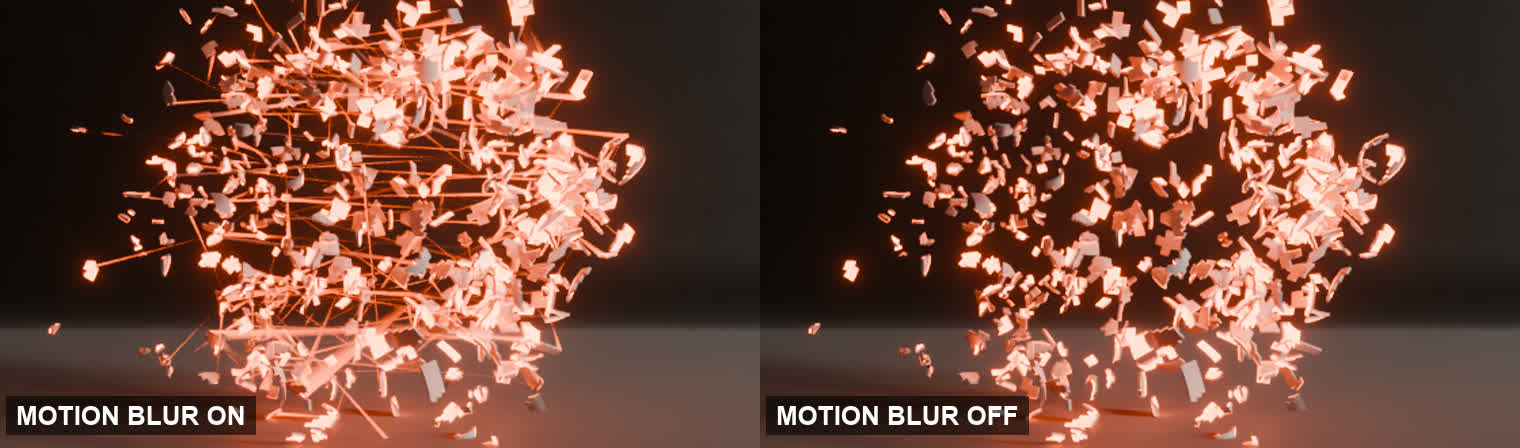
Why it happens. The pieces barely move between frames — a few millimetres — so the blur Cycles should draw is under a pixel wide. Instead it smears each shard along its own direction of travel by a hundred times that, and the smears are only visible where fragments are packed tightly enough to overlap. So it shows up on a slow, dense dissolve and not on debris that has already spread out.
What to do. Set the shutter to 0.1 or lower, or switch motion blur off for the shot. Measured on this effect, 0.5 streaks while 0.1, 0.05 and off are all clean — and because the real motion is sub-pixel, you lose nothing by turning it down. Baking the simulation does not help, and neither does turning Collision off: it is the renderer, not the effect.
Worth knowing
Get Break It Any Way